
Cut Manual Follow Ups: Automate Notifications for Ops in 1–2 Hours

Automated notifications send the right message to the right person the moment a defined event happens, without anyone typing a follow-up email. The immediate payoff is fewer manual nudges and more work finished on time. A project tool pinging a client three days before a deadline, or a manager getting an automatic approval request when a budget line hits its threshold are the two forms most teams meet first.
TL;DR:
- Automated notifications are most effective for time-sensitive, recurring tasks like approvals, reminders, and onboarding processes in operations, HR, and finance teams.
- Sending channels should match urgency: email for non-urgent updates, SMS or push for immediate alerts, in-app for specific record updates, and webhooks for system-to-system triggers.
- Building and testing your first notification takes about one to two hours, with careful setup of triggers, messaging, and recipient preferences to ensure relevance and effectiveness.
- Creating clear, action-oriented subject lines and keeping messages concise increases the likelihood of prompt responses, especially when escalating tone progressively.
- Regular audits and ownership of notifications are essential to prevent outdated or irrelevant alerts from causing noise or confusion over time.
Table of Contents
- What Are Automated Notifications and Where Do Teams Use Them?
- Which Channels and Triggers Should You Use?
- How Do You Set Up Your First Automated Notification?
- What Makes a Notification Message Actually Work?
- What Do Working Notification Templates Look Like?
- When Should You Slow Down on Automation?
- How EasyFlow Handles Notifications Without the Manual Chasing
- Where to Learn More About Setting Up Notifications
- Sources
- FAQ
What Are Automated Notifications and Where Do Teams Use Them?
An automated notification is a message triggered by a rule, not by a person deciding to hit send. Manual alerts depend on someone remembering to check a status and write a note. Automated ones fire the instant a condition is met: a due date passes, a form gets submitted, an invoice ages past 30 days.
The practical value shows up in a handful of recurring situations. Smartsheet groups most of them into update requests, approval requests, and reminders, which covers the bulk of what operations teams actually build.
- Onboarding sequences that remind new hires to complete paperwork or training modules
- Approval requests routed to a manager when a request enters a queue
- Payment reminders sent before and after an invoice due date
- Incident alerts that page the right on-call person when a system flags an error
Operations, HR, customer success, and finance teams tend to get the largest return, mostly because their work is full of repeatable, time-sensitive handoffs that used to require someone watching a spreadsheet.
Which Channels and Triggers Should You Use?
Channel choice depends on urgency and who’s receiving the message. Email works for anything that can wait a few hours and needs a paper trail. SMS and push notifications fit time-critical alerts where a person needs to act within minutes. In-app notifications suit updates tied to a specific screen or record, and webhooks connect one system’s event straight into another platform’s workflow.
- Email: approvals, status digests, weekly summaries
- SMS/push: urgent deadlines, incident pages, appointment reminders
- In-app: task assignments, comment mentions, record changes
- Webhooks: system-to-system triggers, like a CRM update firing a billing action
Triggers generally fall into four buckets: event-driven (a form submission), time-based (a scheduled send), recurring (weekly reminders), and cancellable, where a queued message gets dropped automatically once the related task closes. That last type matters more than it sounds. Without correlation logic, a reminder can go out for a task someone already finished five minutes earlier.
Setup time varies by complexity, but a basic automated email notification typically takes one to two hours to configure, test, and confirm deliverable, once you include authentication setup. Priority queues and retry logic add more time but prevent a spike in events from delaying critical alerts behind routine ones.
How Do You Set Up Your First Automated Notification?
Building your first notification goes faster when you follow a fixed order instead of improvising field by field.
- Define the goal, the recipient list, and the metric that tells you it worked (reply rate, on-time completion, reduced follow-up volume).
- Pick your channel and confirm authentication is in place. Email needs SPF and DKIM records configured correctly; SMS needs documented opt-in consent.
- Build the trigger and set a cancellation rule so a completed task doesn’t still generate a reminder.
- Write the message and test it, including at least one edge case, like a recipient with no name on file or a date field that’s blank.
- Set recurrence and escalation timing, and add a recommended inbox rule so recipients can filter the message without missing it.
- Watch delivery and response rates for the first two weeks, then edit or retire the notification if it underperforms.
Most platforms, including Talkdesk’s admin console, require you to name the notification, attach a flow, choose the triggering event, and set the send timing before you can save it. Naming and documenting each notification this way makes it far easier to audit later, especially once you have a dozen running at once.
Pro Tip: Test every notification with a fake “stale” record, one where the triggering condition is already technically true. That’s where most rules break in production.
What Makes a Notification Message Actually Work?
The subject line should state the action, not just the topic. “Approve Q1 travel budget by Friday” gets opened and acted on faster than “Budget Update.” Put the required action in the first line of the body too, before any context or backstory.
- Keep the body under five sentences. State the deadline and the next step in the first two lines.
- Escalate tone across a sequence instead of repeating an identical message. A polite first reminder, a firmer second one, and a direct third one perform better than three copies of the same email.
- Target recipients narrowly. A notification sent to a whole department instead of the one person who owns the task trains people to ignore it.
- Let recipients set preferences where possible. A notification someone can’t tune out becomes noise they learn to skip.
- Schedule a quarterly audit of every active notification and assign one owner per notification so stale ones get retired instead of quietly running for years.
Some AI-driven reminder tools now auto-generate the tone progression across a sequence, polite to firm to urgent, and stop automatically once someone replies. That kind of adaptive escalation tends to outperform a static three-email cadence because it responds to actual behavior instead of a fixed calendar.
Pro Tip: If a notification hasn’t been opened by anyone in three consecutive sends, the problem is almost never tone. It’s usually the wrong recipient or a broken trigger.
What Do Working Notification Templates Look Like?
A deadline reminder template that names the task, states the exact due date, and links directly to the record cuts down on the “can you send me that again” replies that eat up an ops team’s week. EasyFlow’s automated deadline reminder workflow shows this pattern applied to client deliverables, where the goal is fewer manual check-ins rather than more emails.
- Deadline reminder: fires three days and one day before due date, links to the task, cancels automatically once marked complete
- Project status update: sent weekly to stakeholders with a short summary and a link to the full status page
- Approval request: routes to the assigned approver the moment a request enters the queue, escalates to a backup approver after 24 hours
EasyFlow’s guide on automated approval workflows breaks down how the escalation and backup-approver logic shortens the average handoff time, since a request no longer sits untouched because one person is out of office. Copying a working template and adjusting the wording is almost always faster than designing a notification sequence from a blank page.
When Should You Slow Down on Automation?
The instinct with any notification tool is to automate everything you can. That’s the wrong place to start. The highest return comes from automating the handful of manual tasks that already eat the most time, the deadline chasing, the approval nudging, the “did you see my email” follow-ups that ops people do by hand every week. Those are worth building first.

Where teams go wrong is treating more notifications as the fix when the real problem is tone or targeting. Adding a fourth reminder to a sequence that’s already being ignored rarely helps. Sharpening the escalation path, or checking whether the message is even reaching the right person, usually does.
Automation without an owner drifts. Someone needs to check quarterly whether a notification still matches how the team actually works, because processes change and forgotten rules quietly send noise for years.
— Harsh
How EasyFlow Handles Notifications Without the Manual Chasing
EasyFlow runs the handoffs themselves instead of just tracking that they happened. Reminders, approval routing, and status updates fire automatically as a workflow moves, and external collaborators can act on them through a magic link with no account setup required. That last part matters more than it sounds: a client or vendor who has to create a login before responding to a reminder is a client who ignores it.
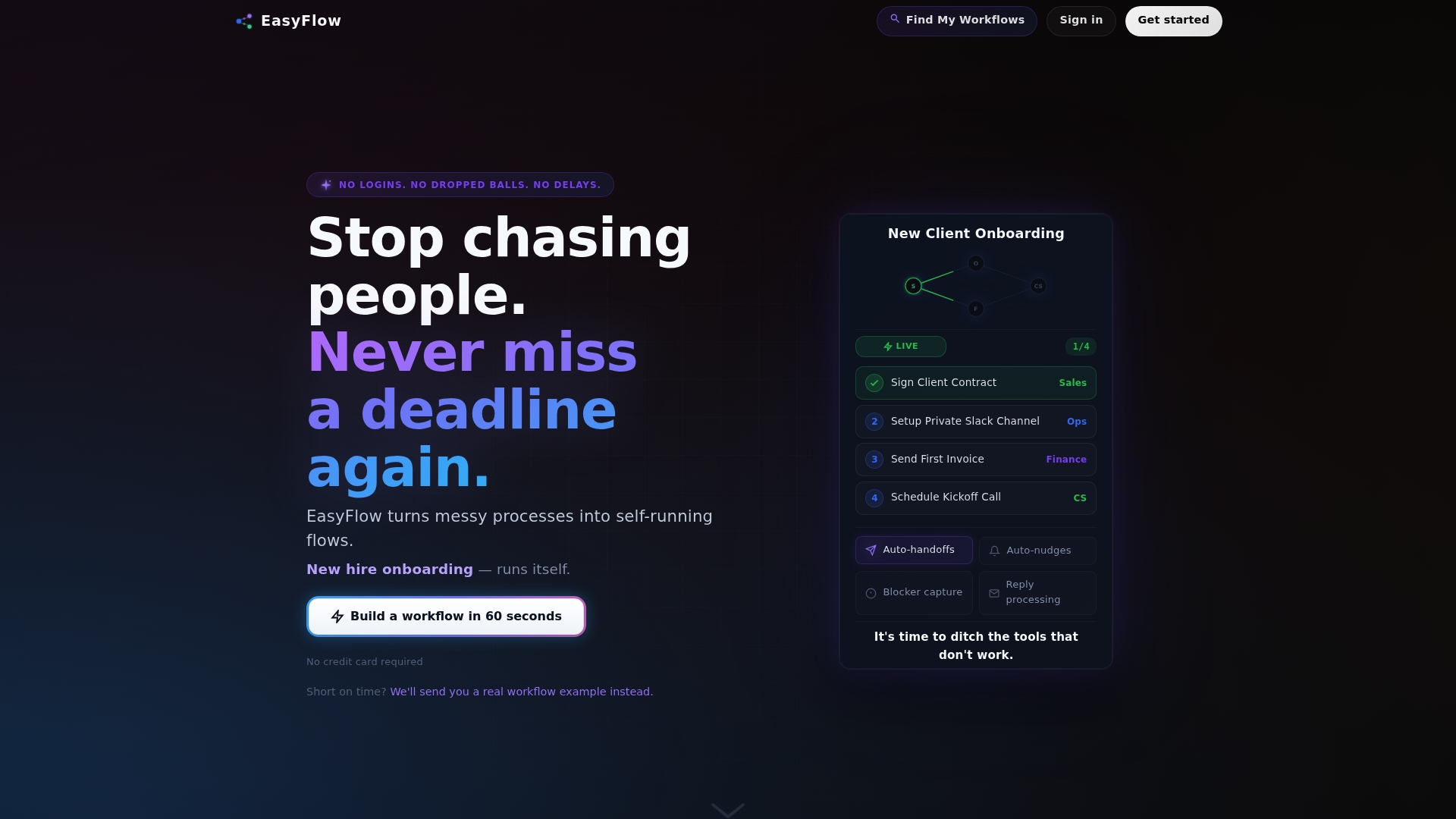
Teams report fewer manual follow-ups and faster completion on multi-step processes, since the system nudges the next person automatically instead of waiting for someone to notice a stalled task. If you’re still chasing signatures and approvals by hand, start a free trial and turn your first deadline reminder into a running workflow instead of a recurring interruption.
Where to Learn More About Setting Up Notifications
A few outside resources are worth bookmarking once your first workflow is live.
- Talkdesk’s admin documentation on notification fields and flow configuration
- Smartsheet’s overview of update requests, approvals, and inbox management
- Smtp on authentication and testing
- EasyFlow’s team alignment guide for broader workflow strategy
- Marketing automation checklist for non-technical teams building their first sequences
Sources
- Automated Notifications: Overview
- Automated notifications sent via Smartsheet
- How do you set up automated email notifications?
FAQ
How Do I Turn Off Automatic Notifications?
Go into the notification settings of the specific platform sending the alert and disable the rule or unsubscribe from that message type. On most platforms this sits inside account or workspace settings rather than your phone’s general notification menu.
Why Is My Phone Not Notifying Me When I Get an Email?
The most common causes are notification permissions disabled for the mail app, a battery-saving mode restricting background sync, or the email itself landing in a spam or promotions folder that doesn’t trigger an alert. Check the app’s permission settings first, since that resolves the issue more often than a server-side delivery problem.
Where Are My Notification Settings?
Most business platforms keep them under Account Settings or a dedicated Notification Center, where you can see every active alert type in one place. Smartsheet’s Notification Center is one example of this layout, letting people manage inbox rules alongside their alert preferences.
How Do I Start Receiving Notifications Again?
Re-enable the specific rule or subscription you turned off, and confirm your app’s notification permissions are still active, since an app update sometimes resets them. If the sender uses email, also check that your inbox rules haven’t quietly routed the messages to another folder.
Can EasyFlow Send Automated Reminders to People Outside My Team?
Yes. EasyFlow sends reminders and approval requests to external collaborators through a magic link, so they can respond without creating an account first.