
Automated Deadline Reminder Workflow for Ops Teams

An effective automated deadline reminder workflow does four things: surfaces upcoming deadlines before they slip, routes context-aware alerts to the channels people actually read, escalates automatically when no action is taken, and lets external collaborators complete tasks via secure links without creating accounts. The fastest path to one looks like this:
- Set a daily scan trigger (typically 8 AM) that reads your live data source and identifies deadlines within your chosen windows.
- Define tiered reminder windows such as 14/7/3/1 days, mapped to the urgency of each process.
- Route by channel and role: email for finance, Slack for ops, SMS for field staff. SMS achieves a very high open rate within minutes of receipt, making it the right call for same-day critical alerts.
- Add escalation rules so that if an owner doesn’t act within a set window, the alert moves up to their manager automatically.
- Enable magic links in every outgoing message so external collaborators can view and complete tasks without signing up.
- Monitor a daily digest that groups upcoming deadlines by urgency tier so leadership can reallocate resources before anything slips.
EasyFlow implements all six of these components out of the box, including no-account magic links for external participants.
Table of Contents
- Why do most deadline reminder workflows fail?
- What are the core components of a deadline reminder workflow?
- How do you design triggers, escalation rules, and filter logic?
- How do you write reminders that actually get action?
- How do magic links let external collaborators act without accounts?
- What KPIs and dashboards should you monitor?
- How do you implement this from pilot to full rollout?
- Ready-to-use workflow templates and message snippets
- US compliance basics for automated SMS and email reminders
- A short, executable plan you can follow this week
- Key Takeaways
- The part most ops teams get wrong
- EasyFlow runs this workflow for you
- Useful sources
- FAQ
Why do most deadline reminder workflows fail?
The root cause is almost never a missing tool. It’s a design flaw: reminders fire on a fixed schedule regardless of what has already happened.
When a reminder fires after someone has already completed the task, or sends the same message for the fifth time with no new information, people stop reading them. That’s reminder fatigue, and it’s a design problem, not a people problem. The single behavior to fix: suppress reminders the moment a task is marked complete, and vary the message content and urgency as the deadline approaches. A workflow automation approach that ties trigger logic to live task status eliminates most of the noise immediately.
Channel mismatch compounds the problem. Email-only reminders miss field staff who live in SMS or mobile apps. Routing to the channel a person actually reads is not a nice-to-have feature; it’s the difference between a reminder that prompts action and one that sits unread.
What are the core components of a deadline reminder workflow?
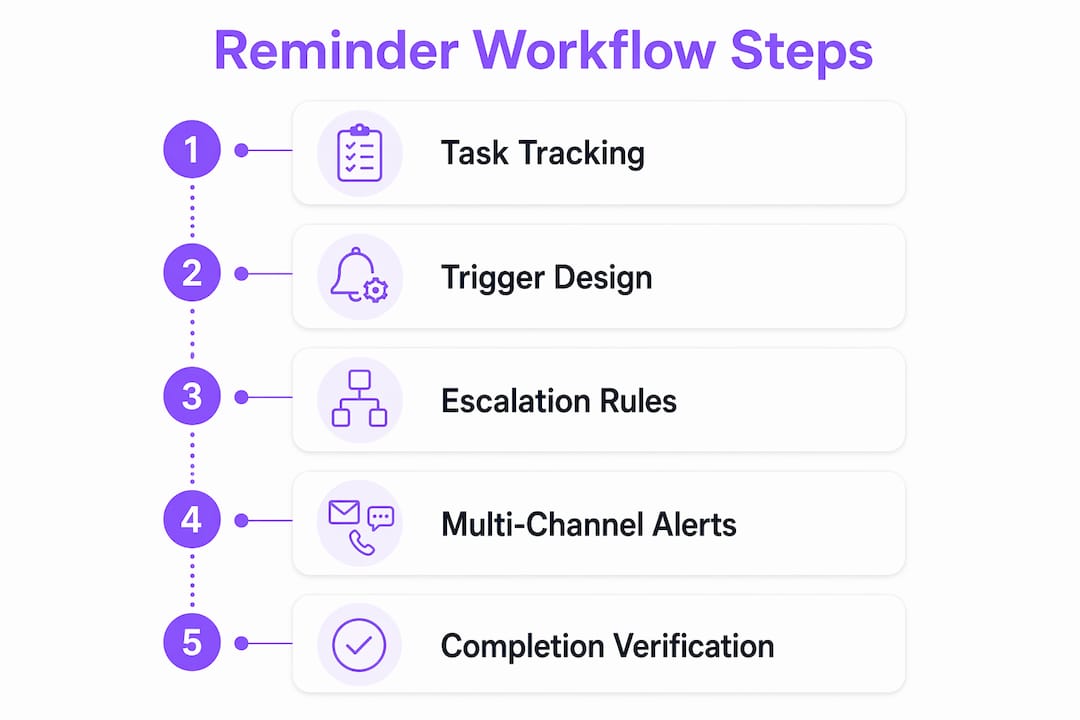
Every reliable workflow shares the same architecture. Here’s the component map:
- Data source: your calendar, CRM, or project management tool (the live record of deadlines and statuses).
- Daily scan trigger: a scheduled job that runs once per day and queries the data source for records matching your filter criteria.
- Filter/IF logic: checks whether the deadline falls within a defined window (e.g., 7, 3, or 1 day out) AND the status is not yet complete.
- Channel router: assigns the outgoing message to email, SMS, Slack, Microsoft Teams, or webhook based on recipient role or preference.
- Templated messages: pre-written content with variable placeholders (name, task, due date, link).
- Magic links: secure, time-limited tokens embedded in messages so external recipients can act without accounts.
- Escalation paths: rules that trigger a second or third alert to a manager or leadership tier when no action is recorded within a set period.
- Audit trail: a log of every reminder sent, delivered, opened, and acted on, with timestamps.
Dedicated due-date tracking platforms let you attach context documents and route to different recipients depending on item type, which is useful when a single deadline involves multiple stakeholders.
Pro Tip: Draw this architecture on a single slide before you build anything. Showing stakeholders the data flow from source to escalation to audit log gets buy-in faster than a demo and surfaces integration gaps early.
How do you design triggers, escalation rules, and filter logic?
The choice between a daily scheduled scan and an event-based trigger comes down to volume. For most ops teams managing overlapping deadlines, a daily 8 AM scan with tiered reminders (7/3/1) is the right default. Event-based triggers work better for single high-stakes items where you want an immediate alert the moment a deadline is set or changed.

A hybrid approach covers both: run the daily scan for routine follow-ups, and add an event trigger for any record where the deadline is modified, so the workflow re-evaluates immediately.
Here’s a concrete rule sequence:
- Scheduled trigger fires at 8 AM daily.
- Get records from the data source where
status ≠ completeANDdeadline is within 7, 3, or 1 day(s). - Loop through matching records and send the appropriate tiered message to the assigned recipient via their preferred channel.
- Log each send to the audit trail with timestamp and channel.
- Escalation rule: if no action is recorded within 24 hours of a 1-day reminder, send an escalation alert to the owner’s manager.
- Multi-tier escalation: if still no action within 4 hours of the manager alert, notify leadership.
Handling deadline changes is where many workflows break. The fix is straightforward: workflows that re-read the current deadline on every scan pick up extensions or amendments automatically and avoid sending reminders for rescheduled items. Never hardcode a deadline into the message template; always pull it live from the data source.
How do you write reminders that actually get action?
Short subject line, one required action, a clear countdown, and a link. That’s the formula.
- Subject line: “Action needed: [Task Name] due in 3 days” beats “Reminder” every time.
- Body: two to three sentences maximum. State what’s due, when it’s due, and what the recipient needs to do.
- Magic link or task link: the single most important element. If the recipient has to navigate to find the task, most won’t.
- Cadence: awareness (7 days) → urgency (3 days) → critical (1 day). Stop sending once the task is complete. Suppressing reminders for recipients who have already acted is the fastest way to cut notification volume without losing coverage.
- Batch digest for high-volume teams: rather than individual alerts for every item, group multiple upcoming deadlines into a single morning digest to keep signal-to-noise manageable.
Sample SMS (1-day alert): “Hi [Name], [Task] is due tomorrow. Tap here to complete it: [magic link]. Reply STOP to opt out.”
Sample Slack (3-day alert): “@[Name] — [Task] is due in 3 days. Complete it here →”
How do magic links let external collaborators act without accounts?
A magic link is a secure, time-limited URL embedded in a reminder message. When a recipient clicks it, they land directly on the task view and can complete their action without creating an account or logging in.
The security controls that make this safe: token expiry (typically 24–72 hours), single-use tokens that invalidate after one click, optional device or IP checks for sensitive workflows, and full audit trail recording of who clicked, when, and what action they took.
A typical no-account workflow looks like this: the system sends an invite with a magic link → daily reminders fire with a refreshed link → the recipient clicks, completes the task → the system records the action, updates the status, and suppresses further reminders automatically.
Pro Tip: Set token expiry to match your reminder window. A 7-day reminder should carry a 7-day token. A 1-day critical alert should use a 24-hour token. Mismatched expiry is the most common magic-link failure mode.
For teams managing contractors or external vendors, this pattern eliminates the back-and-forth of account provisioning entirely. The contractor workflow management guide on the EasyFlow blog covers this in more detail.
What KPIs and dashboards should you monitor?
Leadership needs a forward-looking view, not a post-mortem. The metrics that matter:
- Upcoming deadlines by urgency tier (72/48/24 hours out): your early-warning count.
- Items without owners: any unassigned deadline is a guaranteed miss.
- Overdue count: lagging indicator, but useful for trend analysis.
- Response time to reminders: how long between reminder send and task action.
- Completion rate after reminder: what percentage of reminded tasks get done before the deadline.
- Channel delivery and engagement rates: if email open rates drop for a recipient segment, switch their channel.
A morning digest structure that works: (1) top risks due in 24 hours with owner names, (2) items due in 48–72 hours flagged for review, (3) unowned items requiring immediate assignment, (4) suggested reassignments based on workload. Distributed teams coordinating across time zones benefit from pairing this digest with a time-zone-aware scheduling tool so the digest lands at the right local time for each recipient.
How do you implement this from pilot to full rollout?
Pilot setup (weeks 1–2):
- Select one high-value, repetitive, cross-team process (client onboarding or invoice approval works well).
- Map your data source and confirm the deadline and status fields are clean.
- Configure the daily scan trigger, filter logic, and a single tiered reminder window (7/3/1).
- Set up magic links for any external participants.
- Define your escalation rules and audit trail destination.
Pilot success metrics to track:
- Reduction in missed deadlines vs. the prior manual process.
- Response rate to reminders (target: action taken within the same business day).
- External completion rate via magic links (no-account actions as a share of total completions).
Rollout steps (weeks 3–6):
- Review pilot metrics and adjust cadence or channel routing based on engagement data.
- Build out message templates for additional processes using the reusable workflow template approach.
- Train team leads on the dashboard and digest format.
- Enable phased rollout by department, not all at once.
- Set a quarterly review cadence to update templates and trigger logic as processes evolve.
Ready-to-use workflow templates and message snippets
Three templates cover the most common ops use cases. Adjust the windows to match your process cycle.
| Template | Reminder Windows | Escalation Recipient | Channels |
|---|---|---|---|
| New-client onboarding | 14 / 7 / 3 / 1 days | Account manager → ops lead | Email + Slack |
| Invoice due | 30 / 7 / 3 / 1 days | Finance contact → CFO | Email + SMS |
| Onboarding task checklist | 7 / 3 / 1 days | HR coordinator → department head | Email + Slack |
Message snippets with variable placeholders:
- Email (7-day awareness): Subject: “[Task Name] due in 7 days — action needed.” Body: “Hi [Name], [Task Name] is due on [Date]. Please complete it here: [link]. Questions? Contact [Help Contact].”
- SMS (1-day critical): “URGENT: [Task Name] due tomorrow. Complete now: [magic link]. Reply STOP to opt out.”
- Slack (3-day urgency): “@[Name] [Task Name] is due in 3 days. Complete it here → Ping [Help Contact] with questions.”
For client onboarding specifically, the client onboarding checklist guide maps these templates to the full onboarding sequence.
US compliance basics for automated SMS and email reminders
Before you send at scale, check these boxes:
- TCPA (SMS): obtain explicit written consent before sending automated text messages. Store consent records with timestamps. Include opt-out instructions (“Reply STOP”) in every SMS.
- CAN-SPAM (email): include a physical mailing address and a working unsubscribe link in every commercial email. Honor opt-out requests within 10 business days.
- Audit trail: maintain records of consent, message sends, and opt-outs. This is both a compliance requirement and a workflow health tool.
- PII in messages: never include sensitive personal data (Social Security numbers, financial account details, health information) in plain-text SMS or email bodies. Use the magic link to route recipients to a secure environment instead.
For regulated industries (healthcare, financial services) or large-scale outreach programs, consult legal counsel before launching. This article is general operational guidance, not legal advice.
A short, executable plan you can follow this week
Three steps to get a pilot running before Friday:
- Step 1: Pick your process. Choose the one that is high-value, repetitive, and involves at least one external participant. Invoice approvals and client onboarding are the fastest wins.
- Step 2: Configure your daily scan and magic links. Map the data source, set a 7/3/1 window, and generate magic links for external recipients. Test the full flow end-to-end before enabling live sends.
- Step 3: Measure for two weeks. Track missed deadlines, reminder response rate, and external completion rate. Use those numbers to justify the full rollout.
Prioritize processes where manual follow-up currently consumes the most time. That’s where automation returns the most hours fastest. The case for workflow automation is strongest when you can point to a specific bottleneck and a measurable before/after.
Key Takeaways
An effective automated deadline reminder workflow reduces missed deadlines by combining context-aware triggers, multi-channel routing, automatic escalation, and no-account magic links for external collaborators.
| Point | Details |
|---|---|
| Context-aware triggers cut fatigue | Suppress reminders once a task is complete; vary message urgency as the deadline approaches. |
| Route by channel and role | SMS for field staff, Slack for ops, email for finance; SMS achieves a very high open rate within minutes of receipt. |
| Magic links remove account barriers | Time-limited, single-use tokens let external collaborators act without signing up. |
| Forward-looking KPIs prevent slippage | Track upcoming deadlines by urgency tier, unowned items, and reminder response time daily. |
| EasyFlow as a ready path | EasyFlow executes the full workflow including magic links and no-account external participation out of the box. |
The part most ops teams get wrong
Most teams treat reminder fatigue as a volume problem and respond by sending fewer reminders. That’s the wrong fix. The actual problem is relevance: a reminder that fires after someone has already acted, or that carries no new information, is noise regardless of frequency.
The more useful frame is this: a reminder should change the recipient’s behavior. If it doesn’t, the trigger logic is wrong, not the send count. Context-aware triggers tied to live task status, combined with behavior-based suppression, solve the problem at the source. Adding magic links removes the second most common failure point: the friction of logging in to complete a simple action.
Operations teams that pilot this approach on one process first, measure the response rate and completion rate, and then scale based on data consistently outperform teams that try to automate everything at once. The pilot is not a delay. It’s the fastest path to a workflow that actually runs.
EasyFlow runs this workflow for you
If building the trigger logic, escalation rules, and magic-link infrastructure from scratch sounds like a project in itself, EasyFlow is the faster path. It executes team handoffs automatically, generates secure magic links so external participants can act without accounts, and covers the full architecture described in this guide: daily scan, tiered reminders, multi-channel routing, escalation, and audit trail.
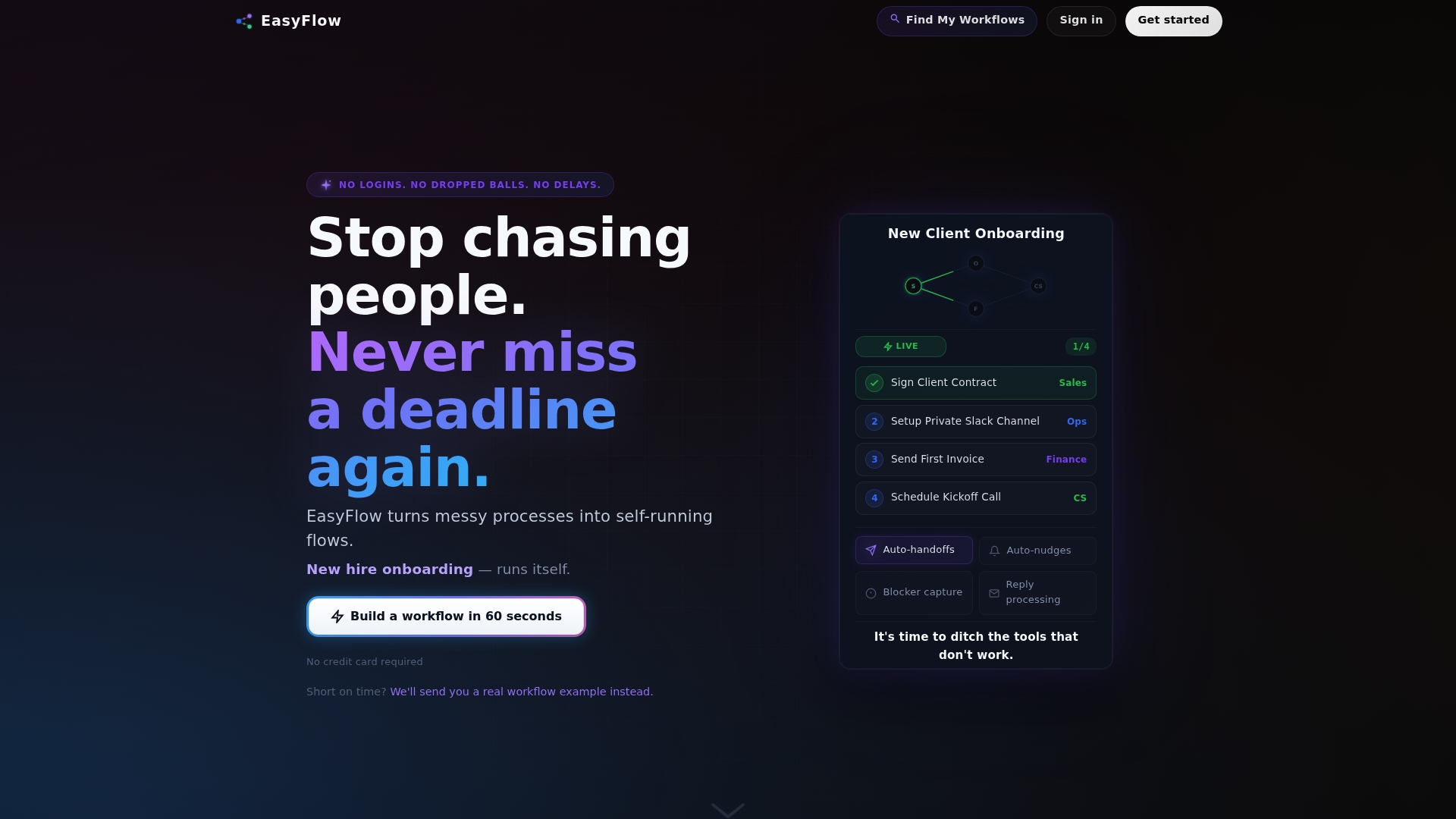
The templates in this article map directly to EasyFlow’s pre-built workflow structures. You can configure a pilot process in a single session without writing any code. Start your pilot with EasyFlow and have your first automated deadline reminder workflow running this week, or explore the full product at teameasyflow.com.
Useful sources
- Automated Multi-Channel Deadline Reminders — ExpiryEdge: multi-channel routing, SMS open rates, escalation patterns, and reminder fatigue insights.
- Automated Deadline Reminders — CLEATUS: daily scan patterns, tiered windows, batch digests, deadline amendment handling, and magic-link context.
- Due Date Tracking Software — RemindCal: configurable advance notice, recipient assignment, and dashboard features.
- Create Automatic Deadline Reminders — Ziflow: suppression logic for completed reviewers and pre/on/post-deadline notification patterns.
- Send Deadline Reminders Before Tasks Are Due — Teable Help: scheduled trigger → Get Records → loop-send workflow pattern.
- EasyFlow — Workflow Automation That Runs Team Handoffs: product reference for magic links and no-account external participation.
FAQ
What is an automated deadline reminder workflow?
It’s a system that scans your task or project data on a schedule, identifies upcoming deadlines, and sends tiered reminders to the right people via the right channels automatically, without manual follow-up.
How do magic links work in deadline reminders?
A magic link is a secure, time-limited token embedded in a reminder message. The recipient clicks it and completes the task directly without creating an account. EasyFlow supports this natively for external collaborators.
What reminder windows work best for most processes?
A 7/3/1-day tiered window covers most ops processes. For longer cycles like invoice management, extend to 30/7/3/1. Always suppress reminders once the task is marked complete.
How do you avoid reminder fatigue in automated workflows?
Use context-aware triggers that check live task status before sending. Suppress reminders for completed tasks, vary message content by urgency tier, and batch multiple items into a daily digest for high-volume teams.
What US compliance rules apply to automated reminders?
TCPA requires explicit written consent before sending automated SMS. CAN-SPAM requires a working unsubscribe link and physical address in commercial emails. Store consent records and honor opt-out requests promptly. Consult legal counsel for regulated industries.