
Gantt Dependencies for Ops Teams: 3 Tests to Avoid False Critical Paths

A Gantt dependency is a rule that links a predecessor task to a successor task, controlling when the second one can start or finish. That single link turns a static bar chart into a reactive schedule: move one task, and everything chained to it shifts too, exposing the sequence of work that actually sets your project’s finish date. Most schedules use shorthand like FS, SS, FF, and SF to describe these links, often with lead or lag time added on top.
TL;DR:
- Finish-to-start dependencies cover around 80 to 90 percent of project links, as most work cannot begin until prior tasks are completed.
- Over-linking tasks can create false critical paths and obscure true parallel work, leading to inefficient schedules.
- Circular dependencies halt auto-scheduling and require careful removal of the latest links to restore proper task flow.
- Lead and lag offsets fine-tune timing but must be used cautiously, as small overlaps often cause rework if predecessors slip.
- Automated workflow tools can replace manual dependency chains by enabling electronic handoffs, reducing delays caused by chasing status updates.
Table of Contents
- What Are the Core Dependency Types in a Gantt Chart?
- How Do You Add, Edit, and Store Dependencies?
- How Do Lead and Lag Change Successor Dates?
- Which Tasks Should You Actually Link?
- Why Do Circular Dependencies Break a Schedule?
- How Do Dependencies Determine the Critical Path?
- How Do Dependencies Affect Resource Allocation and Leveling?
- How Do You Manage Dependencies Across Multiple Projects?
- How Do Gantt Tools Compare on Complex Dependency Support?
- How Should You Update Dependencies When Scope Changes?
- How Do You Visualize Dependencies for Stakeholders?
- EasyFlow’s Perspective: When Automation Beats a Dependency Chain
- Turn Dependency Chains Into Automated Handoffs
- Sources
- FAQ
What Are the Core Dependency Types in a Gantt Chart?
Every dependency connects a predecessor (the task that happens first) to a successor (the task that follows it). That’s different from a milestone, which marks a point in time with no duration. A dependency governs when work happens; a milestone just flags that something has been reached.
There are four standard dependency types most Gantt tools model, and each answers a different scheduling question:
- Finish-to-Start (FS): The successor can’t start until the predecessor finishes. Example: you can’t paint a wall until the drywall is installed and dry.
- Start-to-Start (SS): The successor starts once the predecessor starts, not necessarily when it’s done. Example: QA testing begins as soon as development kicks off, running in parallel.
- Finish-to-Finish (FF): The successor can’t finish until the predecessor finishes. Example: a training video can’t be finalized until the script it’s based on is finished.
- Start-to-Finish (SF): The successor can’t finish until the predecessor starts. This one is rare, but it shows up in staffing handoffs, like a night shift that can’t end until the next shift has clocked in.
FS covers the overwhelming majority of real-world links. Practitioner guidance suggests it accounts for roughly 80 to 90 percent of dependencies in a typical project, and for good reason: most work genuinely can’t begin until something else is done. SS and FF earn their place when tasks can legitimately overlap, like parallel testing or simultaneous documentation work, but if you find yourself reaching for SF or FF often, it’s worth asking whether your tasks are broken down correctly in the first place.
How Do You Add, Edit, and Store Dependencies?
Creating a link usually takes one of two forms depending on your tool: dragging an arrow from one task bar to another on the chart, or typing a predecessor’s task number directly into a task row. Deleting a link is typically just as fast, either by clicking the connecting line and hitting delete, or by clearing the predecessor field.
Underneath the interface, dependency data follows a fairly consistent structure. Gantt components commonly store each link as an object with fields like an ID, a type code (FS, SS, FF, SF), a predecessor ID, and a successor ID. If you’re integrating a Gantt tool with a custom database, you’ll often need to map your own field names to those expected properties, since not every system calls them the same thing.
Before you start editing links on a live schedule, run through a short checklist:
- Save a baseline first, so you can compare the schedule before and after your changes.
- Check whether auto-scheduling is turned on. If it is, one edit can cascade dates across dozens of tasks without warning.
- Test the change on a small, isolated section before applying it project-wide.
- Confirm the successor’s dates actually moved the way you expected. If they didn’t, the link type or direction is probably wrong.
How Do Lead and Lag Change Successor Dates?
Lead and lag are offsets you add on top of a dependency type to fine-tune timing. Lag adds a delay between predecessor and successor. Lead allows overlap, letting the successor start before the predecessor is technically finished.
Notation makes this concrete. An FS +3 relationship means the successor starts three time units after the predecessor finishes, a 3-day cure time before painting, for instance. An FS −2 means the successor can start two units before the predecessor is done, like starting interior trim work while final inspections are still wrapping up.
- Lag adds buffer time you actually need (drying, curing, approval turnaround).
- Lead compresses the schedule by overlapping work, but it’s a bet on things going smoothly.
Pro Tip: Lead time gets overestimated more often than any other scheduling input. Even a small optimistic overlap turns into rework the moment a predecessor slips, so when in doubt, set the lead more conservatively than your gut suggests.
Whenever a predecessor’s dates move, the successor’s dates recalculate automatically based on that offset, which is exactly why lead time deserves more scrutiny than it usually gets.
Which Tasks Should You Actually Link?
Not every task needs a dependency, and treating your Gantt chart like it does is how schedules become unreliable. Before you draw a link, run the task through three quick tests.
- The blocked-if-delayed test: If this predecessor slips a week, does the successor genuinely have to slip too? If the answer is no, skip the link.
- The approval or handover test: Does the successor require a sign-off, deliverable, or handoff from the predecessor before it can begin?
- The shared-resource test: Are the same people or equipment needed for both tasks, forcing one to wait on the other regardless of task logic?
Over-linking is more common than under-linking, and it causes real damage. It manufactures a false critical path that doesn’t reflect reality, triggers cascading date changes every time someone touches an unrelated task, and hides genuine parallel work behind unnecessary sequencing. A practical scheduling workflow that experienced planners use: build out your tasks and dates first, based on realistic parallelism, then add dependencies only for the three or four sequences where a delay would truly block the next step. You can always add more links later if a real constraint surfaces.
Pro Tip: If you’re not sure whether a link belongs, ask “what breaks if I delete this line?” If nothing breaks, delete it.
Why Do Circular Dependencies Break a Schedule?
A circular dependency happens when Task A depends on Task B, and Task B depends on Task A, directly or through a longer chain. The scheduling engine has no valid starting point to calculate from, so it deadlocks: auto-scheduling fails, error messages pop up, or dates start behaving strangely, snapping to the same day or refusing to move at all.
Most modern Gantt tools catch this using topological sort algorithms, commonly a variation of Kahn’s algorithm, which tries to arrange tasks into a valid linear order before running critical path calculations. When a cycle exists, no valid order is possible, and the tool flags it.
If your schedule throws a circular dependency error:
- Isolate the links you added most recently. That’s almost always where the loop was introduced.
- Remove any discretionary links (the “nice to have” sequencing) rather than the hard logical ones.
- Re-run the auto-schedule to confirm the error clears.
- Reapply only the links that pass the blocked-if-delayed test, one at a time, checking for errors after each.
How Do Dependencies Determine the Critical Path?
The critical path is the longest chain of dependent tasks running from project start to finish, and it’s entirely a product of how your dependencies are drawn. Every task on that chain has zero float, meaning any delay to it delays the entire project by the same amount. Tasks off the critical path have slack, room to slip without affecting the finish date.
This is where dependency choices stop being academic. Link two tasks that don’t actually need to be sequential, and you can accidentally pull them onto the critical path, making the project look longer than it really is and making a delay in one look more urgent than it should be. Conversely, missing a real dependency means your critical path calculation understates risk. If a permit approval genuinely blocks construction, but no one linked those tasks, the schedule won’t show that a permit delay pushes the entire finish date.

The critical path method treats dependency accuracy as foundational, not optional, because every duration estimate downstream depends on the logic being right. A schedule with ten unnecessary links can produce a critical path that’s technically calculable but practically meaningless: it points to a chain of work that isn’t actually driving your deadline. That’s the real cost of sloppy dependency mapping. It’s not that the chart looks messy. It’s that the number everyone stares at, the finish date, gets attached to the wrong tasks.
How Do Dependencies Affect Resource Allocation and Leveling?
Dependencies and resource constraints solve two different problems that constantly collide. A dependency says “this can’t start until that finishes.” A resource constraint says “this can’t start because the person who does it is busy on something else.” Resource leveling is the process of adjusting a schedule so the same person or team isn’t double booked across supposedly parallel tasks.
The friction shows up when a Gantt chart shows two tasks running side by side with no logical dependency between them, but they both need the same specialist. Nothing in the dependency structure stops the overlap; only leveling catches it. Some teams solve this by adding an artificial dependency between the two tasks just to force sequencing, but that muddies the schedule’s logic. A cleaner fix is to keep dependencies limited to genuine task logic and let resource leveling, whether manual or automated, handle the assignment conflict separately.
This distinction matters most when a delay hits. If a predecessor slips because of a real logical dependency, the successor moves with it. If a task slips because the assigned person is overloaded, moving the successor’s dates doesn’t fix anything, since the resource conflict just shifts down the timeline with it. Diagnosing which kind of block you’re dealing with, logical or resource, before you touch the schedule saves a lot of wasted rework.

How Do You Manage Dependencies Across Multiple Projects?
Dependencies get harder to manage the moment work spans more than one project. A single Gantt chart handles internal task logic well, but program managers often need to track dependencies that cross project boundaries entirely, where a deliverable from Project A is a prerequisite for Project B to start.
These cross-project links are usually the most fragile part of a program schedule because they live outside any single team’s direct visibility. The team running Project A may not know their delivery date change ripples into Project B until it’s already caused a delay. Program-level dependency tracking generally needs three things working together: a shared naming convention so tasks reference each other consistently, a visible way to flag cross-project links (many tools use a distinct color or icon for external dependencies), and a regular review cadence where program leads check for slippage before it compounds.
The temptation is to link everything across every project to be safe. Resist it. Apply the same blocked-if-delayed test across program boundaries that you’d apply within a single project: only wire projects together where a real handoff exists. A shared budget or shared stakeholder isn’t a scheduling dependency. A deliverable one team is physically waiting on from another team is.
How Do Gantt Tools Compare on Complex Dependency Support?
Not every scheduling tool handles dependencies the same way, and the differences matter more as your projects get more complicated. Entry-level spreadsheet-based Gantt tools typically support basic FS links and manual date entry, which works fine for simple, linear projects but breaks down fast once you need SS, FF, or SF relationships, or lead and lag offsets.
Mid-tier dedicated Gantt applications generally support all four dependency types, automatic cycle detection, and auto-rescheduling when a predecessor moves. This is the tier where most project teams should be operating, since it catches circular dependency errors before they cause silent scheduling failures.
Enterprise-grade platforms and developer-facing Gantt components go further, exposing dependency data as structured objects with fields for predecessor ID, successor ID, and type code that can bind to custom databases. That flexibility matters for teams building internal tools or integrating scheduling data with other systems, but it’s overkill for a team that just needs to plan a project and keep it updated.
The right tier depends on how often your dependencies change and how many people need to see them update live. A team managing recurring client work with predictable handoffs often gets more value from a tool that automates the handoff itself, rather than one that just visualizes it more elaborately.
How Should You Update Dependencies When Scope Changes?
Scope changes are where dependency structures usually rot. A task gets added mid-project, a client requests a new deliverable, or a phase gets cut, and the schedule’s links don’t get revisited to match. The result is a chart that looks authoritative but is quietly wrong.
When scope shifts, treat dependency review as its own step, not an afterthought to updating dates. Start by identifying every task touching the changed scope and asking whether its existing links still make sense. A new task inserted between two previously linked tasks needs its own predecessor and successor relationships defined explicitly. Don’t assume the tool will infer them.
Re-run the blocked-if-delayed test on any dependency that’s more than a few weeks old, especially on long projects. Task logic that made sense at kickoff sometimes stops applying once real work reveals a different sequence than what was planned. It’s also worth checking for orphaned dependencies: links pointing to a task that got deleted or renamed during a scope change, which some tools silently drop and others error out on.
Save a new baseline after any significant scope change. Comparing the updated schedule against the prior baseline is the fastest way to spot a dependency that should have been added, removed, or retimed but wasn’t.
How Do You Visualize Dependencies for Stakeholders?
A Gantt chart’s dependency lines are often the only part of a schedule that non-project-managers actually look at closely, because they answer the question stakeholders care about most: what happens if this slips? Clear visualization of those links is what turns a schedule from a status report into a decision-making tool.
The most useful visual convention is highlighting the critical path distinctly, usually with a different color or bolded bars, so anyone glancing at the chart can see immediately which tasks have zero room to slip. Pairing that with visible dependency arrows, rather than hiding them until a task is clicked, lets a stakeholder trace cause and effect without needing a walkthrough.
Keep the visual free of clutter from unnecessary links. A chart with forty crossing lines communicates nothing; a chart with the four or five real blocker chains highlighted communicates the actual risk. When presenting to executives or clients who won’t touch the underlying tool, a simplified export showing just the critical chain, key milestones, and major handoff dependencies usually lands better than the full working schedule with every link visible.
EasyFlow’s Perspective: When Automation Beats a Dependency Chain
Most teams build dependency chains to model handoffs between people, not just logical task order, and that’s where things get fragile. A “finish to start” link between “design review” and “development start” isn’t really describing task logic. It’s describing a person waiting for an email, a Slack message, or a sign-off that might not come on time. Some workflow automation approaches treat that differently: instead of drawing a link and hoping someone notices when it’s their turn, they execute the handoff, notifying the next person automatically and letting external collaborators complete their step through a magic link with no account required.
This matters most in repeatable operational work: onboarding a new hire, running a client implementation, any process where the same handoff sequence happens repeatedly. A dependency chain models that sequence once, on paper. Automation runs it every time, catches the stalled step, and removes the follow-up emails that used to be someone’s job. The question worth asking before you draw another link isn’t just “does this task depend on that one?” It’s “should a person be manually tracking this handoff, or should something execute it?”
— Harsh
Turn Dependency Chains Into Automated Handoffs
Some workflow automation tools replace the manual chasing that dependency-heavy schedules create with workflows that actually run themselves. Instead of drawing another link and hoping someone checks their task list, these tools can notify the next person automatically, and let external collaborators finish their step through a magic link, no account setup, no onboarding friction.
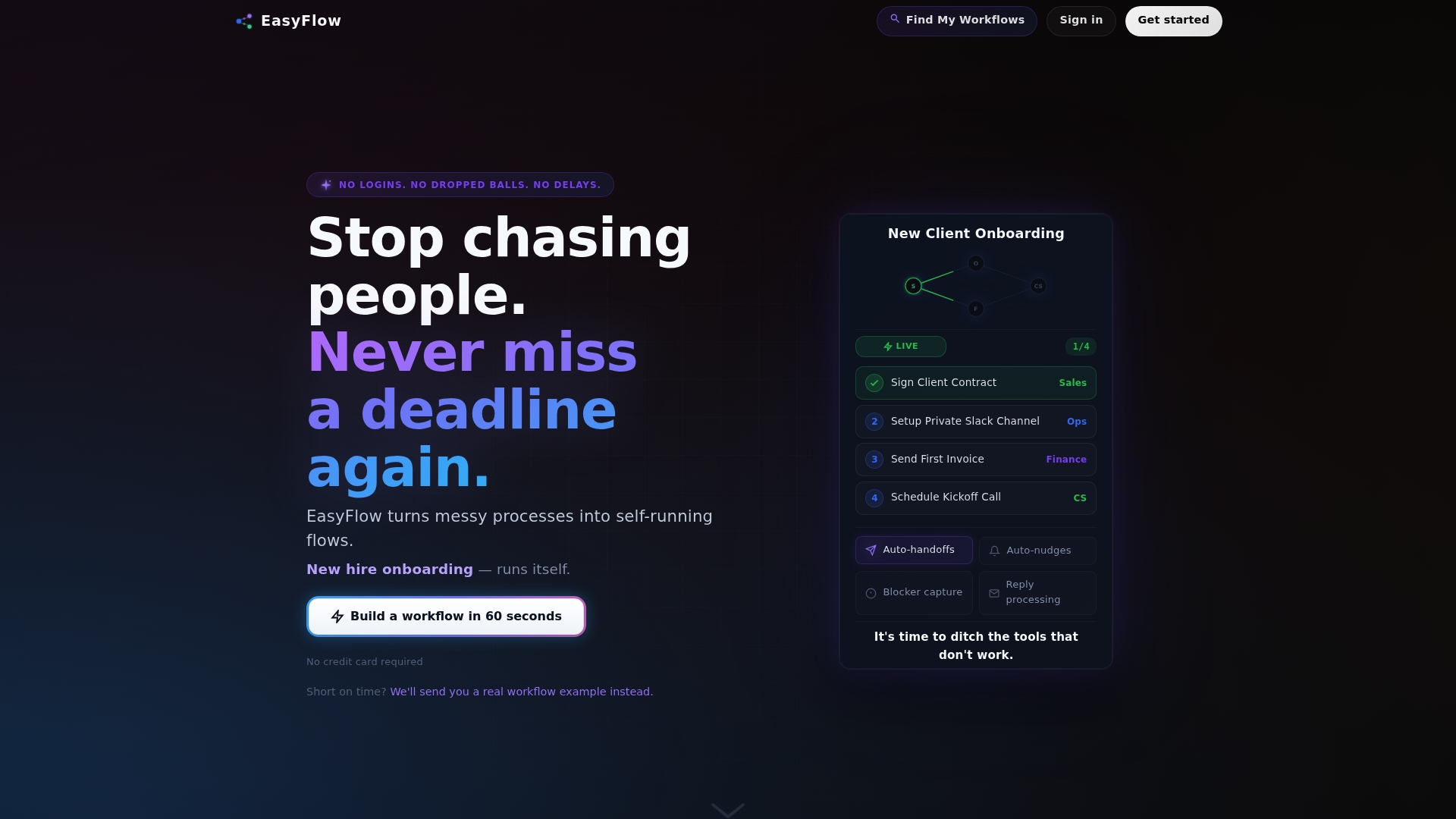
That’s the real difference for operations-heavy teams: a Gantt chart shows you which tasks are supposed to happen next, but it can’t make them happen. EasyFlow can, whether it’s a client implementation with a dozen handoff points or a new-hire onboarding sequence that repeats every month. Pre-built templates and AI-powered workflow generation mean you’re not rebuilding the same sequence from scratch every time, and automatic blocker detection flags a stalled step before it turns into a missed deadline. If your team is spending more time chasing status updates than doing the work itself, start a free trial with EasyFlow and see how many of those follow-up messages disappear in the first week.
Sources
- Gantt Chart Dependencies
- Understanding lead and lag in task dependencies for Gantt charts
- Gantt chart dependencies: which tasks to link and why - Ganttile
- React Gantt - Gantt Elements | React Documentation v23.2
- Critical Path Method (CPM): Definition, Components & Method
FAQ
What Are the Four Types of Dependencies?
The four standard types are Finish-to-Start (FS), Start-to-Start (SS), Finish-to-Finish (FF), and Start-to-Finish (SF), each defining a different relationship between when a predecessor and successor task start or finish.
What Does SS, SF, FS, and FF Mean?
FS means the successor starts after the predecessor finishes; SS means both start together; FF means both finish together; SF means the successor can’t finish until the predecessor starts, the rarest of the four in practice.
How Do I Add Dependencies to a Gantt Chart in Excel?
In Excel-based Gantt templates, you typically add a predecessor task number in a dedicated column next to each task row, and the chart’s start date formula references that predecessor’s finish date to calculate the successor’s start.
What Are the Key Elements of a Gantt Chart?
A functional Gantt chart generally includes task names, start and end dates, duration bars, dependency links, milestones, assigned owners, and a visible critical path, with some tools adding automated handoffs on top of the visual layout.
How Do I Fix a Circular Dependency Error?
Isolate the most recently added links first, since that’s usually where the loop was introduced, remove discretionary connections, then re-run auto-scheduling and reapply only the links that pass a genuine blocked-if-delayed test.